
Ages 8-14
Coding Classes for Kids Ages 8-14 in Frisco, TX
Kids build real video games from their first session, and keep the game at the end. The belt curriculum takes them from drag-and-drop blocks to typed JavaScript at their own pace - nobody waits for the class to catch up.
How it works
Create runs as drop-in sessions during open hours. You pick the days that suit you; your ninja signs in, picks up where they left off, and a sensei works alongside them. Two sessions a week is the standard membership.
What they actually learn
Sequencing and logic first, then loops, variables, conditionals, functions and data structures - each introduced because a game they are building needs it. The language changes as they grow: MakeCode Arcade blocks to start, typed JavaScript at Blue Belt, then Unity or Godot at the advanced belts.
How progress is measured
Nine belts, White through Black, each a set of levels with its own projects. Parents get a progress page and an email after sessions where there is something worth saying - not a blanket newsletter.
The full curriculum
Nine belts, 43 levels, 107 projects
Every ninja starts at White. Blue is where the blocks come off and they start typing JavaScript; Black is a capstone project of their own design. Tap a belt to see every level in it, and what they build.
White Belt
Four levels that go from getting something to appear on screen to writing a named piece of code that reacts to what the player does - the shape of every program they will write from here.
- 1Computer science
Writing a first program, and getting something to appear and move on screen.
Projects- Your First Sprite
- Spooky Effects
What they learn4
- Coding their first spriteSet a background color, added a character to the screen, and made it talk using code blocks.
- Moving things on screenLearned how to position a sprite exactly where they wanted it using X and Y coordinates.
- Finding and fixing bugsPracticed reading code carefully to spot mistakes and debug their first program.
- Personalizing a projectCustomized their game with a splash screen, a sound effect, and a screen effect.
- 2Sequence
Putting instructions in an order, because the same steps in a different order give a different result.
Projects- Meet New Friends!
- Where's My Puppy?
What they learn4
- Adding a second spriteCreated and positioned 2 sprites on screen so they could be part of the same story together.
- Naming spritesLearned how to give each sprite its own name to keep code organized and easy to follow.
- Finding and fixing bugsPracticed reading code carefully to spot mistakes in the order sprites speak and play sounds.
- Sequencing with dialog boxesUsed dialog boxes in the proper sequence to tell a complete “lost and found” story.
- 3Events
Code that waits for something to happen - a button pressed, an edge reached - instead of running straight through.
Projects- Fly Me to the Moon!
- Dinner Time!
What they learn4
- Moving with direction buttonsUsed the controller's direction buttons to move a sprite up, down, left, and right on screen.
- Keeping sprites on screenLearned how to stop a sprite from wandering off the edge of the screen while it moves.
- Finding and fixing bugsPracticed reading code carefully to spot mistakes in how a sprite moved around the screen.
- Layering sprites front and backPositioned sprites so they appear in the correct order - moving some in front of, or behind, others.
- 4Functions and parameters
Naming a piece of code so it can be reused anywhere, and changing how it behaves by the values handed to it.
Projects- A Piece of Cake
- Underwater Food Chain
What they learn4
- Detecting sprite overlapLearned how to make something happen in code the moment two sprites touch or overlap on screen.
- Using different sprite kindsBuilt a game with 3 different kinds of sprites - Player, Goal, and Enemy - each behaving differently.
- Finding and fixing bugsPracticed reading code carefully to spot mistakes in how sprites reacted to each other.
- Reaching a goal, avoiding an enemyMoved a Player sprite to overlap a Goal sprite for points, while steering clear of the Enemy sprite.
Yellow Belt
The four things every program is built from: storing a value, repeating work, choosing between paths, and making the result move and sound like something.
- 1Variables
Storing a value that changes while the program runs - a score, a number of lives - so the program can keep track of it.
Projects- The Mushroom and the Munchy Munchy Monkey
- Pearl Collector
What they learn4
- Using variablesLearned how a variable can change its value while a game is running, like lives or points.
- Keeping sprites apartMade a Player sprite avoid an Enemy sprite to keep from losing lives.
- Collecting sprites for pointsBuilt a game where points went up each time the Player sprite collected a Food sprite.
- Finding and fixing bugsPracticed reading code carefully to spot mistakes in how variables were changing.
- 2Loops
Code that repeats, so one instruction can do a job many times instead of being written out again for each one.
Projects- Avoid the Asteroids!
- Space Adventure
What they learn4
- Using a loopLearned how a loop can make new Enemy sprites keep appearing on their own, again and again.
- Keeping sprites apartKept a Player sprite away from a stream of Enemy sprites until the timer ran out.
- Scoring with projectilesMade the points variable go up each time a projectile from the Player sprite destroyed an Enemy sprite.
- Finding and fixing bugsPracticed reading code carefully to spot mistakes in how loops and projectiles were behaving.
- 3Conditionals
Choosing between paths: if this is true do one thing, otherwise do another.
Projects- The Wizard's Mystic Toadstools
- Unlock the Hidden Treasure!
What they learn4
- Using if/then conditionalsLearned how an if/then block can make a sprite react differently depending on what it touches.
- Collecting the right spritesBuilt a game where the Player collected Food projectiles while avoiding Enemy projectiles.
- Unlocking treasure chestsUsed a condition to award points only when a treasure chest had been filled up.
- Finding and fixing bugsPracticed reading code carefully to spot mistakes in how conditionals were checked.
- 4Animation and soundAnimations and Music
Changing what is on screen and what is heard over time, and tying both to what is happening in the program.
Projects- Animated Aquarium
- Musical Mayhem
What they learn4
- Animating spritesLearned two different ways to animate a sprite so it looks like it's moving on its own.
- Adding music to a projectUsed music blocks to add a melody that played along with the game.
- Using conditionals with musicCombined conditionals with sound to change the music based on what happened in the game.
- Finding and fixing bugsPracticed reading code carefully to spot mistakes in animations and music blocks.
Orange Belt
The belt where code stops describing one thing and starts working over data - a world held as a grid, values held in a list, and one function reused with different values.
- 1Modeling a world as dataTilemaps
Describing a place as a grid, so the rules about where you can and cannot go live in data rather than being written into the code.
Projects- Avoid the Snakes!
- Carrot Chase
What they learn4
- Building a tilemapLearned how to design a tilemap as the grid-based world a sprite moves around in.
- Placing walls and tilesUsed different tile types to build walls that block where the Player sprite can go.
- Detecting tile overlapsMade something happen automatically when the Player sprite overlapped a specific tile.
- Debugging tilemapsPracticed finding and fixing mistakes in tilemap and wall-collision code.
- 2Events and timingTilemap and Lifecycle Events
Code that runs when something begins, ends or runs out of time, rather than when a person presses a key.
Projects- The Key to the Castle
- Coin Grabber!
What they learn4
- Tilemap overlap eventsCoded something to happen automatically when the Player sprite overlapped a tile.
- Lifecycle events and timingUsed lifecycle events to make a collectible sprite disappear if it isn't reached in time.
- Collecting items for pointsBuilt a project where collecting coins increases the Player's score.
- Debugging lifecycle eventsPracticed finding and fixing mistakes in tilemap overlap and lifecycle event code.
- 3Lists and inputVariables and Arrays
Holding many values under one name instead of a separate name for each, and using what the person typed in.
Projects- All About Me
- Welcome to the Farm
- Mad Libs
What they learn4
- Using variablesStored facts the user typed in so the project could use them later.
- Using arraysUsed arrays to randomly place several sprites around the screen at once.
- Getting user inputAsked the user questions and used their answers inside the project.
- Debugging variables and arraysPracticed finding and fixing mistakes in variable and array code.
- 4Looping over a listRepeat and For Element Of Loops
Running the same code a set number of times, or once for every item in a list.
Projects- Memory Game
- Archeological Dig
What they learn4
- Using repeat loopsUsed a repeat loop to run the same block of code a set number of times.
- Using for-element-of loopsUsed a for loop to do something with every element stored in an array.
- Testing with conditionalsUsed conditionals to check whether a player correctly remembered a hidden sprite.
- Debugging loopsPracticed finding and fixing mistakes in repeat and for-element-of loop code.
- 5Functions and parameters
Reusing one named piece of code from several places, and handing it different values each time so it behaves differently.
Projects- Cookie Clicker Game!
- Snowflake Catch
What they learn4
- Using functionsCreated a function to run the same block of code whenever a button is pressed.
- Functions with parametersPassed a parameter into a function to make different things happen each time it's called.
- Destroying sprites on a button pressMade a sprite disappear from the game the moment a button was pressed.
- Debugging functionsPracticed finding and fixing mistakes in function and parameter code.
Green Belt
Making a world behave by rules rather than by instructions: motion with real acceleration, conditions combined with AND and OR, and values that rise and fall as it is played.
- 1Physics and motion2D Tilemaps and Physics
Movement described by acceleration and velocity rather than fixed steps, so things speed up, fall and land the way they do in life.
Projects- Cactus Jump
- Avoid the Roadblocks
- The Floor is Lava!
What they learn4
- Jumping with physicsUsed gravity and jump physics to make a sprite leap over obstacles realistically.
- Acceleration and velocityUsed acceleration and velocity to make sprite movement feel smooth and realistic.
- Spawning spritesMade new sprites appear in the game automatically while it's running.
- Debugging 2D tilemapsPracticed finding and fixing mistakes in 2D platformer tilemap code.
- 2Boolean logicConditionals and Boolean Statements
Combining conditions with AND, OR and NOT, so a rule can depend on more than one thing at once.
Projects- Magic Coin Scavenger Hunt
- Raindrop Invincibility
- Snake Pit!
What they learn4
- AND BooleansUsed the AND operator so something only happens when two conditions are both true.
- NOT BooleansUsed the NOT operator to flip a condition and trigger the opposite result.
- OR BooleansUsed the OR operator so something happens when at least one of two conditions is true.
- Debugging BooleansPracticed finding and fixing mistakes in code that uses Boolean logic operators.
- 3Nested loops
A loop inside a loop - which is how grids, rows and repeated patterns get built without writing each one out.
Projects- Bubble Pop!
- Bee Catcher
What they learn4
- For Index LoopsUsed a nested for index loop to create multiple rows of sprites on a tilemap.
- While LoopsUsed a while loop to keep adding new sprites as long as a condition stayed true.
- Controlling sprite countsUsed loops to control exactly how many sprites appeared on the tilemap.
- Debugging loopsPracticed finding and fixing mistakes in code that uses nested and while loops.
- 4Calculated positionsTilemap Location and Extension Code
Working out where something goes by calculation instead of fixing it by hand, and using code libraries written by other people.
Projects- Block Jumper
- Bridge Builder
- Dino Defender
What they learn4
- Tilemap Location BlocksUsed tilemap location blocks to place tiles at exact spots on a tilemap.
- Tilemap Location Blocks and OperatorsCombined tilemap location blocks with operators to set tiles at a calculated number of spots.
- Tilemap Extension BlocksUsed tilemap extension blocks to switch the Player between two different tilemaps.
- Debugging Tilemap BlocksPracticed finding and fixing mistakes in code that uses tilemap location and extension blocks.
- 5Tracking state over timeScrolling Background and Status Bar Extensions
Keeping a value that rises and falls as the game is played, and showing it on screen so the player can see it.
Projects- Scenic Drive
- Burger Dash
What they learn4
- Scroller Extension BlocksUsed Scroller extension blocks to make a background scroll behind the Player as it moves.
- Status Bar Extension BlocksUsed status bar extension blocks to track and change a sprite's status, like its Hunger level.
- Sending projectilesMade sprites send projectiles toward other sprites to change their status.
- Debugging Extension BlocksPracticed finding and fixing mistakes in code that uses scroller and status bar extension blocks.
Blue Belt
The belt where blocks become a language. Everything learned so far, retyped as real JavaScript - where a missing bracket or a single = instead of == is the whole difference between working and not.
- 1Writing code as textJavaScript Syntax
Moving from snapping blocks together to typing real JavaScript, where spelling and punctuation have to be exact.
Projects- hello world!
- Bouncing on the Walls
- Follow Me!
What they learn4
- Writing JavaScript codeWrote real JavaScript code for the first time, instead of snapping together blocks.
- Adding and positioning spritesAdded sprites to a project and set their starting position on screen.
- Moving sprites in different waysProgrammed sprites to move around the screen and bounce off the walls.
- Debugging sprite codePracticed finding and fixing mistakes in JavaScript sprite code.
- 2Properties and commentsProperties and Code Comments
Setting the attributes that describe an object, and leaving notes in the code that explain it to whoever reads it next.
Projects- Greeting Card
- Show Time!
- Seasons Change
What they learn4
- Setting sprite and text propertiesUsed properties to customize how sprites and text look and behave.
- Using effect parametersUsed parameters to control sound and visual effects in a project.
- Adding dialog boxes and code commentsUsed dialog boxes to sequence a story, and code comments to explain what the code does.
- Debugging properties and parametersPracticed finding and fixing mistakes in code that uses properties and parameters.
- 3Grouping codeBlock Statements
Putting lines together so they run as one unit, which is what makes larger programs readable.
Projects- Screen Saver
- Button Clicker!
- Two Sprite Showdown
What they learn4
- Using block statementsUsed block statements to group lines of code together so they run as one unit.
- Looping an animationUsed a loop inside a block statement to keep an animation running continuously.
- Controlling the A buttonUsed an event block to make something happen whenever the A button is pressed.
- Tracking score with multiplayer spritesUsed block statements and events to track score across two different sprites on screen.
- 4Nesting and branchingNested Block Statements
Putting one group of code inside another, and branching with if and if/else so the program can go more than one way.
Projects- Save the Crab
- Going Bananas
- Grab Bag!
What they learn4
- Nesting block statementsPut one block statement inside another to build more complex behavior.
- Using if conditionalsUsed if statements to make something happen only when a condition is true.
- Using if/else conditionalsUsed if/else statements to make the game do one thing or another depending on what happens.
- Randomizing outcomesUsed conditionals to randomize what the player receives each time they play.
- 5Assignment and equalityAssignment and Equality Operators
The difference between giving a value to something and asking whether two values match - one of the most common sources of bugs in any language.
Projects- Shop 'Til You Drop
- Cookie Stacker
What they learn4
- Using assignment operatorsUsed assignment operators to create and update the value stored in a variable.
- Using equality operatorsUsed equality operators to compare two values and check if they match.
- Using relational operatorsUsed relational operators to compare amounts and see which is greater or less.
- Calculating with math operatorsUsed math operators to calculate and update a running total as the game is played.
- 6Comparing and combiningBoolean and Relational Operators
Comparing amounts, and combining the answers, to decide what happens next.
Projects- Shooting Hoops!
- Guess the Number!
What they learn4
- Using Boolean AND operatorsUsed AND operators to check that two conditions are both true before something happens.
- Using Boolean OR operatorsUsed OR operators so something happens whenever at least one condition is true.
- Using relational operatorsUsed relational operators to check whether the player overlaps the ball before letting them shoot.
- Controlling the A buttonUsed an event block to make something happen whenever the A button is pressed.
Purple Belt
Organizing a program big enough to need organizing: grouping objects by type, holding data in lists and lists of lists, and splitting the work into named functions that can see only what they should.
- 1Types and namespacesNamespaces
Sorting things into kinds, so one rule covers every object of that kind instead of being repeated for each.
Projects- Collect the Honey!
- Snowball Fight!
- Asteroid Attack!
What they learn4
- Using different sprite kindsCreated unique sprite kinds so different sprites can behave differently in the same project.
- Detecting sprite overlapUsed overlap events to make something happen when two sprites touch.
- Using onCreated eventsUsed lifecycle events to run code automatically whenever a new sprite is created.
- Debugging sprite kindsPracticed finding and fixing mistakes in code that uses sprite kinds and overlap events.
- 2Counting loopsFor Loops
Counting through a range, up or down, to repeat work a known number of times - and nesting them to build a grid.
Projects- Fireflies Collector
- Counting Sprites
- Mystery Boxes!
What they learn4
- Using for loopsUsed a for loop to repeat code and create multiple sprites at once.
- Incrementing and decrementingUsed for loops to count up and down, giving the player a set number of chances.
- Nesting for loopsNested for loops inside each other to create a grid of sprites on screen.
- Debugging for loopsPracticed finding and fixing mistakes in code that uses for loops.
- 3Arrays
Storing a list under one name and reaching any item in it by its position.
Projects- Magic 8 Ball
- What's in a Name?
- Concentration
What they learn4
- Using arraysUsed arrays to store a list of values and randomly choose one to use in the project.
- Empty arrays and array functionsStarted with an empty array and used array functions to add user-provided values to it.
- Array indicesUsed the index of elements in an array to trigger different things to happen.
- Debugging arraysPracticed finding and fixing mistakes in code that uses arrays.
- 4Working with listsArray Functions
Building lists up as the program runs, putting lists inside lists, and searching them for a match.
Projects- Match Game
- Username Generator
- Memory Match
What they learn4
- Array index valuesUsed index values in arrays to randomly generate images and check for a match.
- Nested arraysUsed arrays nested inside other arrays to generate username suggestions from user input.
- Array functionsUsed array functions and empty arrays together to build a color matching game.
- Debugging array functionsPracticed finding and fixing mistakes in code that uses array functions.
- 5Functions and scopeFunctions
Reorganizing working code into named pieces, and knowing which parts of a program can see which values.
Projects- Pizza Party
- Barn Breakout!
- Damage Control
What they learn4
- Functions with parametersCreated functions that take in parameters to build a pizza based on user input.
- Refactoring and function scopeReorganized code into functions and used function scope to run code each time a level changes.
- Calling functions with parametersDocumented and called functions with multiple parameters to spawn moving sprites.
- Debugging functionsPracticed finding and fixing mistakes in code that uses functions with parameters.
- 6Libraries and branching storiesAdvanced Animations, Music, and Extensions
Layering movement, sound and player choice, using extensions other people wrote rather than building everything from scratch.
Projects- Escape the Haunted Castle!
- City Scroller
- Find the Ninja!
What they learn4
- Animation and musicUsed image and movement animation, plus a custom melody, to bring sprites to life.
- Using the Scroller extensionUsed the Scroller extension to create layered backgrounds that move at different speeds.
- Using the Story extensionUsed the Story extension to offer the player choices that lead to different outcomes.
- Debugging the Story extensionPracticed finding and fixing mistakes in code that uses the Story extension.
Brown Belt
The longest belt, and the one where design joins coding. Half of it is logic - tiles, state, extensions - and half is craft: pixel art, animation, a consistent set of assets, and screens that make sense to a player.
- 1Organizing a projectAsset Management
Keeping the pieces of a larger project in order, and placing things by coordinate rather than by hand.
Projects- The Bookcase
- Shark Attack
What they learn4
- Using tilemaps and coordinatesUsed a tilemap and set sprite locations with tilemap coordinates.
- Placing sprites on random tilesUsed code to place different sprites on random tiles of a tilemap.
- Spawning tiles and using camera functionsUsed spawn and camera functions to control where sprites appear and what the player sees.
- Debugging tilemaps and sprite locationsPracticed finding and fixing mistakes in code that uses tilemaps, sprite locations, and camera functions.
- 2Making a world reactUsing Assets in Code
Tiles that block the way and tiles that lead somewhere else, so the world responds without the code naming every case.
Projects- Two Worlds
- Avoid the Haystacks!
What they learn4
- Switching tilemaps on overlapUsed tile overlap events to switch the tilemap when a sprite overlaps a certain tile.
- Using tilemap wall eventsUsed tilemap overlap events with wall tiles to block a sprite from passing through.
- Using different sprite kindsUsed different sprite kinds so wall tiles and exit tiles can behave differently in the project.
- Debugging tile overlap eventsPracticed finding and fixing mistakes in code that uses tile overlap and wall events.
- 3True/false stateControlling Conditions with Boolean Variables
Storing a yes-or-no answer and using it to control what the program allows next.
Projects- Dust Mite Adventure
- Gravity Jumper
- Salmon Catch
What they learn4
- Using physics for movementUsed physics to change how a sprite moves around a 2D platformer tilemap.
- Using y-accelerationUsed y-acceleration to change a sprite's movement on a 2D platformer tilemap.
- Using while loops with tile overlapsUsed a while loop together with tile overlap events to control a sprite's movement.
- Debugging sprite movementPracticed finding and fixing mistakes in code that uses physics, acceleration, and while loops.
- 4Editing assetsModifying Image Assets
Changing existing artwork so several scenes share one consistent look.
Projects- A Walk through the Seasons
- A Change of Scenery
What they learn4
- Modifying gallery image assetsModified background image assets from the gallery to create new scenes.
- Using the Scroller extensionUsed the Scroller extension to make a sprite "walk" through multiple scenes.
- Customizing sprite and tile assetsCustomized an existing sprite image, background image, and tile assets for a project.
- Creating multiple unique scenesCombined customized backgrounds, sprites, and tiles to build 4 unique scenes in one project.
- 5Pixel artPixel Art Strategies
Color, outline, shading and dithering - the craft of making a very small image read clearly.
Projects- Creating Custom Pixel Art
- Pixel Art Colors & Outlines
- Pixel Art Shading - Shadows & Reflections
- Pixel Art Dithering
- Creating Pixel Art in Multiple Sizes
What they learn4
- Creating original pixel artCreated and refined original pixel art images in the MakeCode image editor.
- Using analogous colors and outlinesUsed analogous colors and a smooth outline to improve a pixel art image.
- Adding shading and ditheringUsed shading and dithering to add depth and ease the transition between colors in a pixel art image.
- Creating pixel art in multiple sizesCreated and refined an original pixel art image in multiple sizes.
- 6Designing a setCustom Sprite Packs
A pack of images that work together: one palette, one theme, and a character drawn from several points of view.
Projects- Create Sprites from Multiple Perspectives
- Create a Color Palette for a Sprite Pack
- Creating and Using a Sprite Pack
What they learn4
- Creating sprites from multiple perspectivesCreated multiple points of view for a sprite to show the direction it's moving or facing.
- Using a specific color paletteUsed a specific color palette to create original image assets for a sprite pack.
- Designing a sprite packDesigned a sprite pack of assets for a project using a unifying theme.
- Debugging sprite packsFound and fixed bugs in projects that use custom sprite packs.
- 7AnimationAnimation Techniques
Rotating, bouncing and walking - the techniques that make a still image feel alive.
Projects- Animation Techniques
- A Cozy Evening
- Super Ninja!
What they learn4
- Practicing animation techniquesPracticed animation techniques such as rotating, spinning, and bouncing.
- Animating a scene to come to lifeAnimated several images in a scene to make a room come to life.
- Animating sprite movement in different directionsAnimated a superhero ninja sprite as it walks and flies in different directions.
- Debugging animationsFound and fixed bugs in projects that use sprite animation.
- 8Building terrainCustom Tile Assets
Designing original tiles and building a world out of them.
Projects- Hills and Ladders
- We Built this City!
What they learn4
- Creating custom tilesCreated custom tiles to design unique platforms and terrain in a 2D platformer tilemap.
- Building a tilemap with multiple custom tilesBuilt a tilemap of a city using different custom tile assets.
- Climbing and collecting on a tilemapUsed a sprite that avoids enemies and collects objects by climbing up and down a specific tile type.
- Debugging custom tile projectsFound and fixed bugs in projects that build platformer games with multiple custom tiles.
- 9Interface and experienceUser Interface & User Experience
What the player sees first, the choices they are offered, and how the game tells them what is going on.
Projects- Maze Masters
- A Pet's Day
What they learn4
- Creating splash and game over screensCreated custom splash and game over screens, and a menu for players to choose a level from.
- Using text spritesUsed the Story and Text Sprite extensions to display dialog and text on screen.
- Creating a personalized experience for the userCreated a "choose your own adventure" project that gives the user a personalized experience based on their choices.
- Debugging scene sequence and dialog textFound and fixed bugs in projects with multiple scenes, dialog text, and a game narrative.
- 10Extending the toolsPixel Code and Extensions
Reading and writing individual pixels, and adding minimaps, timers and a 3D view using extensions.
Projects- Painter's Palette
- Maps of all Sizes!
- Feed The Hungry Dinos!
- Museum Heist
What they learn4
- Using pixel color functionsUsed pixel color functions to let the user paint on the screen in different colors.
- Using the Minimap extensionUsed the Minimap extension to show a zoomed out display of sprites and the tilemap.
- Using Status Bar and Timer extensionsUsed the Status Bar and Timer extensions to show a health meter and control the timing of actions.
- Using the Raycasting extensionUsed the Raycasting extension to turn a 2D tilemap into a 3D environment.
Red Belt
Two complete games, built start to finish rather than one technique at a time, and judged on how they play as much as on how they are coded.
- 1A project end to endPhysics and User Experience
One complete game - physics-driven movement, a status display and navigation between levels - rather than a single technique.
Projects- First Hole
- A Multi-Perspective Golf Course
What they learn4
- Using physics for sprite movementUsed physics to control how the golf ball moves and reacts on the course.
- Adding a status barCreated a status bar to track and display information as the player moves the golf ball.
- Navigating between levels with a tilemapUsed a top down tilemap to let the player navigate between the second and third holes.
- Designing UI/UX featuresDesigned User Interface features to enhance the User Experience of the mini golf project.
- 2Systems in a gameGame Systems and User Experience
Timed waves, an in-game economy to spend and earn, and the screens that frame the whole thing.
Projects- First Wave
- Many Enemies, Many Paths!
- Turtles vs. Crabs
What they learn4
- Creating enemy wavesUsed timed intervals to spawn waves of enemy sprites that attack the player's defenses.
- Building an in-game economyAdded a system that lets the player earn and spend money to build towers and improve their strategy.
- Designing UI/UX for feedbackAdded User Interface features like on-screen text so players get feedback on their game experience.
- Designing start and end screensDesigned the start, level select, and game over screens to complete the Tower Defense project.
Black Belt
Their own project, start to finish: planned before a line was written, designed, built, playtested by other people, and revised on what those people found.
- 1An original project
Their own idea, planned, built, playtested and revised, using everything from White Belt onwards.
Games built here, that you can play
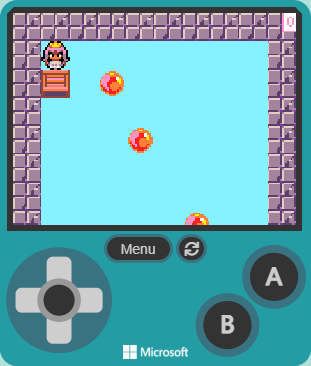
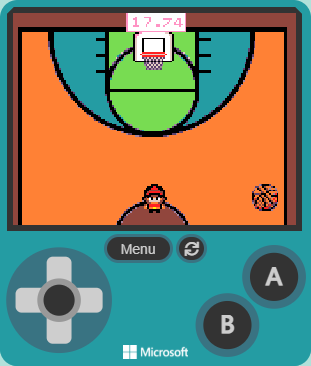
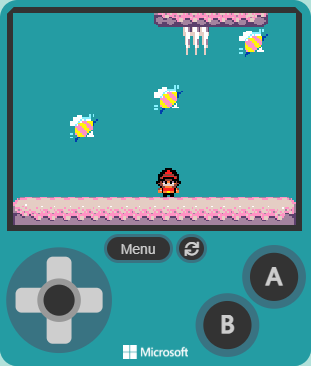
Real projects submitted by a ninja here, on Code Ninjas' own site. Tap a console and the game runs, with the code behind it on screen beside it.
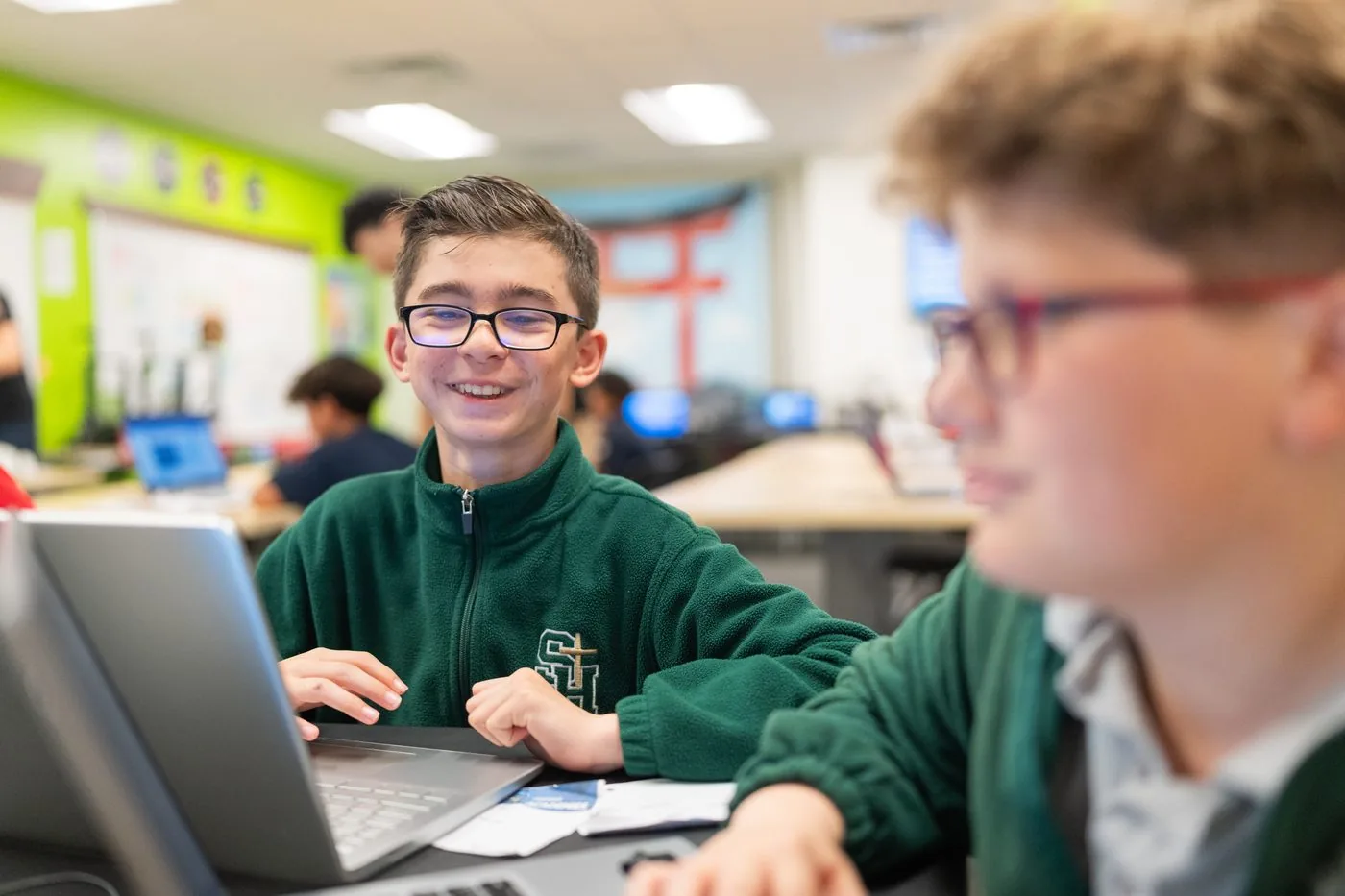
“They met him where he was and helped him move into more advanced material, which kept him interested and excited to learn.”
School breaks
Coding (Create) camps, too
During the school year it is a class a week. School breaks are full days, 9am to 3pm, with a finished project by the end.
 Ages 6+Coding Carnival TycoonBuild arcade games, then build the controllers to play them.
 Ages 8+Digital Art & Game DesignColor theory, composition and pixel art, for games they design.
 Ages 8+Esports Strategy & Game CodingCode a hero's tactics and compete head to head in the arena.
From our parent guides
What Age Should Kids Start Coding?
Kids can start at 5 with tools that need no reading. Here is what suits each age, and how to tell they are ready.
Before you ask
Common questions
Does my child need any coding experience?
No. Every ninja starts at White Belt regardless of age, and the first projects assume nothing.
Do they need to be able to read well?
For Create, yes - reading helps. Ages 5-7 who are not reading yet are better suited to our Junior program.
Is it the same thing every week?
No. Each level has its own build, and the curriculum runs for years - most ninjas are with us well beyond a single school year.
What if we miss a week?
Nothing is missed. Create is drop-in whenever we are open, so come on another day, and a ninja picks up at the level they were on rather than wherever a class has reached.
Can they carry on with it at home?
Yes. The projects are theirs, they run in a browser, and a ninja can open what they built here on any computer at home.
If AI can write code, is this still worth learning?
Yes. A model produces code that looks right, and the valuable skill is being able to tell whether it is. Beyond that, most of what a ninja practices here is breaking a problem into steps, being precise and understanding why something worked the way it did. Those habits stay useful wherever they end up.
See it for yourself
A free session is the honest way to judge whether this suits your child.
Open Monday to Thursday 4-7pm and Saturday 10am-2pm.